Convert HEIC to PDF in Minutes: Easy Steps!
Convert HEIC to PDF in minutes with our simple step-by-step guide. Learn how to quickly turn iPhone photos into shareable, space-saving PDF files.
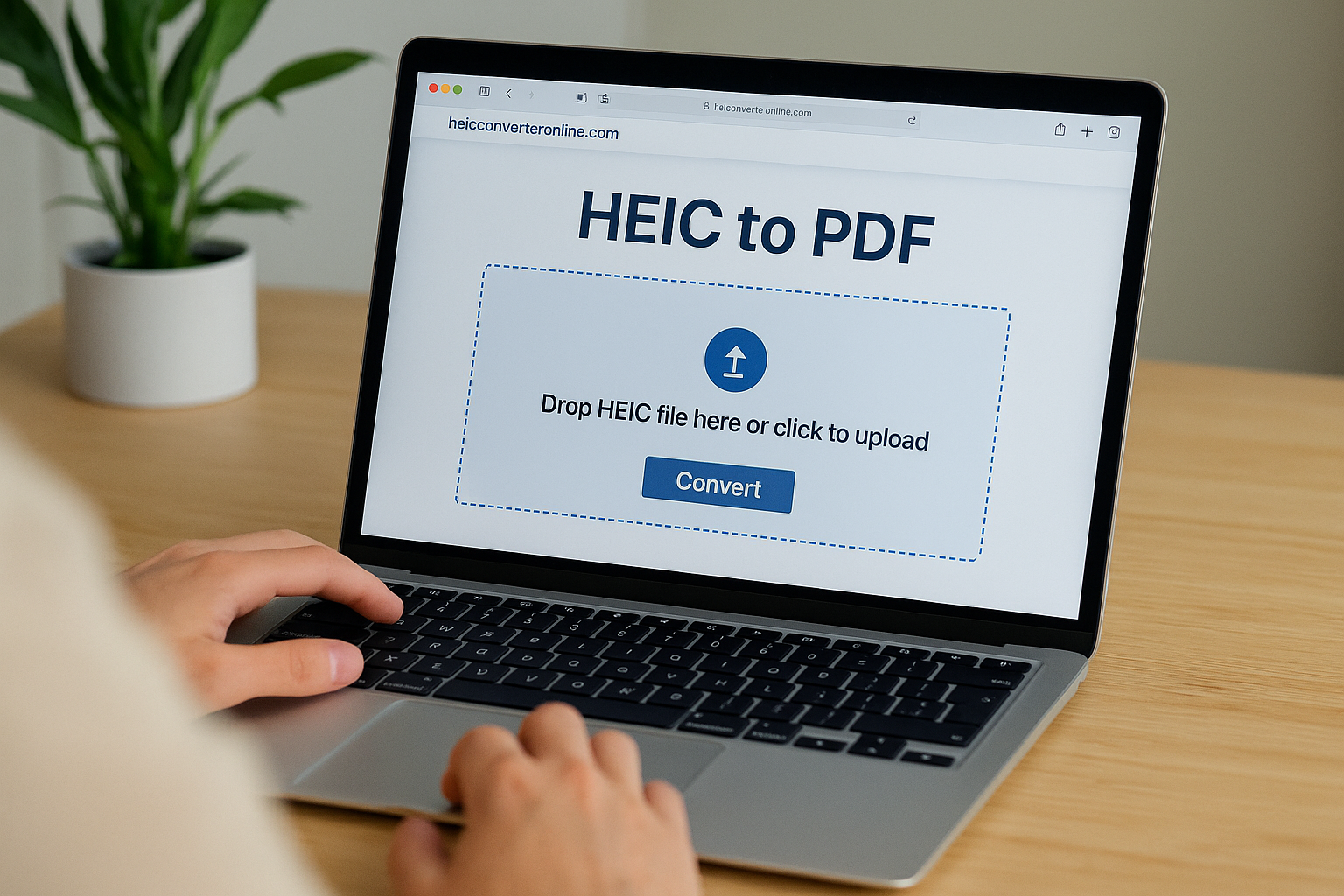
HEIC photos are great on iPhones and iPads, but the moment you try to email them, upload them, or open them on a different device, things can get messy. That's where a simple HEIC to PDF conversion saves you a ton of hassle.
Instead of worrying about whether someone can open a HEIC file, you can turn your images into PDFs that work almost anywhere—on Windows, Mac, Android, in browsers, and in most apps. It's also a clean way to bundle multiple photos into a single, easy-to-share document.
In this guide, you'll learn what HEIC files are, why converting HEIC to PDF is so useful, which tools you can use, and the exact steps to go from iPhone photo to ready-to-share PDF in just a few minutes.
What is a HEIC File?
HEIC stands for High Efficiency Image Coding. It's a modern image format that Apple uses on its devices like iPhones and iPads. One of the coolest things about HEIC files is that they allow you to keep high-quality images while using less storage space. This means you can snap away without worrying too much about filling up your device's memory. The pictures still look amazing, so you won't miss out on quality!
However, there are downsides to sharing or using HEIC files on other platforms. Not all computers or software support this format, which can make it tricky if you want to send those beautiful photos to someone who doesn't have an Apple device. Sometimes you might need to convert HEIC files to a more common format, like JPEG or PDF, before sharing them, which adds an extra step.
Why Convert HEIC to PDF?
Converting HEIC to PDF can be really helpful for many reasons. First, let's talk about what a PDF is. It stands for Portable Document Format, and it works on almost any device—whether you're using a phone, tablet, or computer.
Now, why would you want to convert your HEIC images (which often come from newer iPhones) into PDFs? Imagine you took some amazing pictures with your friends at an event. If you want to share those photos easily, turning them into a PDF makes sense! Your friends won't need special apps; they can just view the PDF right away.
Another situation where converting HEIC to PDF shines is printing. If you have great images that you want to print out, using a PDF keeps everything looking sharp and clear. Nobody wants their photo to look blurry or weird after printing!
Plus, if you're working on school projects or reports, PDFs are super useful. You can combine several HEIC images into one PDF document, making it easy to present your work in a neat way. It's like having all your best memories or assignments organized in one place.
Online HEIC to PDF Converters
When you need to convert HEIC files to PDF, there are several tools and software options available that can make this process easy and painless. Here are some HEIC to PDF converters you can easily use today:
- [HEIC Converter](https://heicconverteronline.com/) - Completely free and super easy to use. Just upload your HEIC file, hit convert, and download your PDF in seconds.
- Zamzar - User-friendly and supports many formats beyond just HEIC. You can convert files quickly without needing to install anything.
- CloudConvert - Offers high-quality conversions with lots of settings if you want to customize the output. It also integrates well with cloud storage services like Google Drive.
We recommend using [HEIC Converter](https://heicconverteronline.com/) for the fastest and easiest conversion experience. It's completely free, requires no registration, and works directly in your browser!
How to Convert HEIC to PDF
If you've got some HEIC files (those fancy pictures from your iPhone) and want to turn them into PDFs, don't worry. Here's an easy step-by-step guide to help you through it.
- Select Your HEIC Files - Find those HEIC files on your device. These are usually stored in your Photos app if you're using an iPhone. Open the Photos app, browse through your photos and pick out the ones you want to convert.
- Choose Your Conversion Tool - There are many options online or apps you can download. HEIC Converter lets you upload your HEIC files directly without needing to install anything.
- Upload and Convert - Simply drag and drop your HEIC files or click to browse and select them. Choose PDF as your output format and click convert.
- Download Your PDF - Once the conversion is complete, download your new PDF file. It's that simple!
Tips for a Painless Conversion Experience
Converting your HEIC files to PDF can be a breeze if you follow some simple steps. Here's how to make the process painless and easy.
- Check the size and quality of your HEIC files before you start converting. If they're too large, it might take longer or cause problems during conversion.
- Always back up your original HEIC files! Accidents happen, and it's better to be safe than sorry. Storing copies means you won't lose any important images.
- Keep your files organized by naming them clearly before conversion. This makes it easier to find them later.
- Test the converted PDF on different devices to ensure it looks good everywhere.
Convert HEIC to PDF with HEIC Converter
Converting HEIC files to PDF has a lot of great benefits. First off, PDFs are widely used, and you can open them on almost any device without losing quality. This means you won't have to worry about your photos looking different when shared with friends or family. Plus, PDFs make it easy to organize reports and documents in one place.
Using an HEIC Converter is a painless way to change your files. It's free and super simple to use! You just follow a few easy steps, and before you know it, your HEIC images will be converted into PDFs that everyone can view effortlessly. So if you're looking for a straightforward solution to manage your files better, give the HEIC Converter a try. It's a fantastic tool that makes your life easier!